The control surface
you already own.
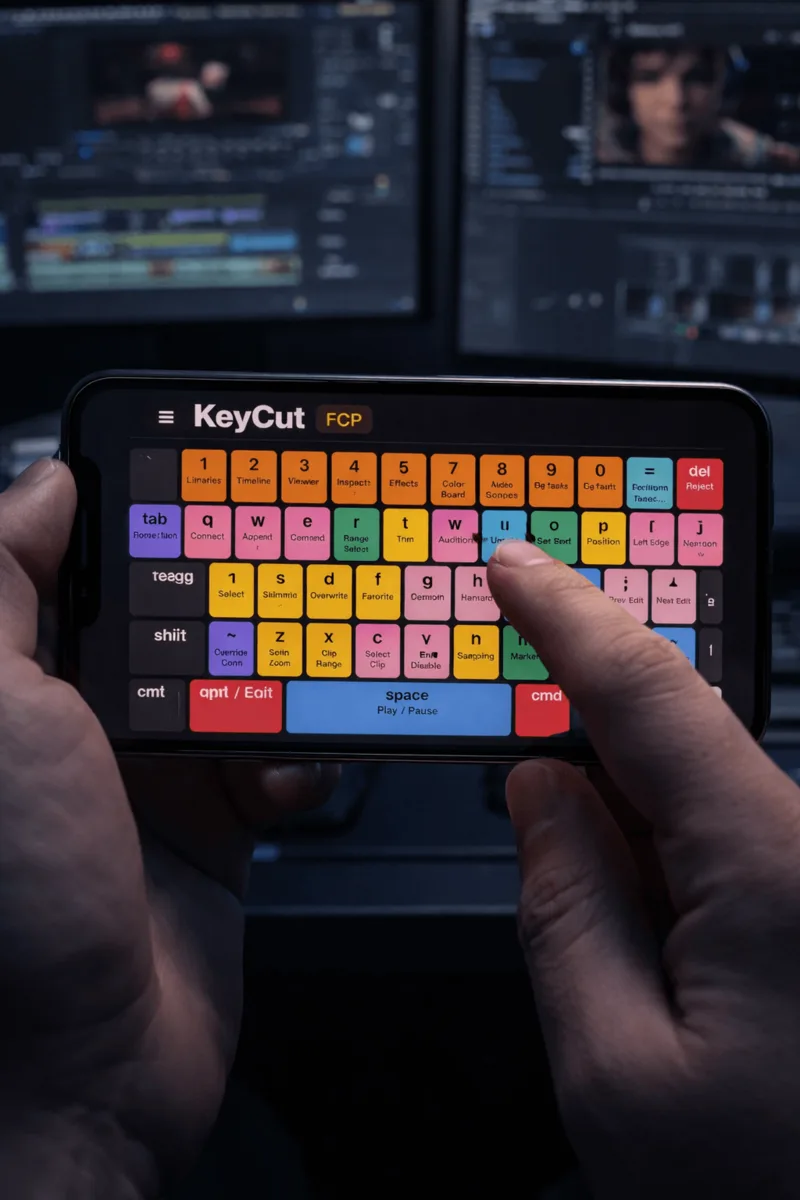
Your iPad already has more keys than any edit controller you can buy, and it can label every one of them. KeyCut turns it into a control surface for Final Cut Pro, Premiere Pro and DaVinci Resolve — switching between them on its own as you move.
What is KeyCut?
Sixty labelled keys.
On a screen you already own.
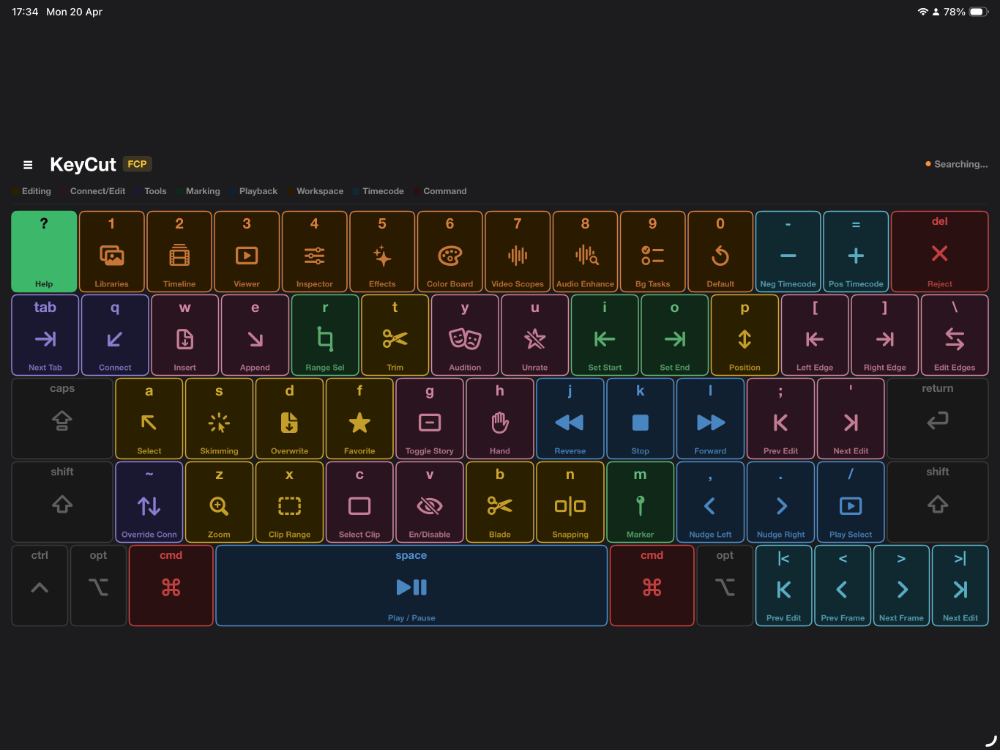
Dedicated edit controllers give you fifteen or thirty-two keys with small icons you have to remember the meaning of. KeyCut gives you the whole keyboard, every key labelled with what it actually does, on the iPad already sitting next to your Mac.
Tap one and your editor responds. Keep tapping and something better happens — the colours and positions stick, your hands start reaching for the real keyboard, and eventually you stop needing the iPad for the shortcuts you use most. That's the point. A controller you grow out of, key by key.
3
Editors supported
180+
Shortcuts, labelled
Free
On App Store
Colour-coded learning
Colour does the remembering
until you don't need it to.
Every key belongs to a category, and every category has a colour. You stop hunting for a specific key and start reaching for a region of the keyboard — roughly how editors who have used the same software for a decade describe what they actually do.
How it works
Three editors.
No setup between them.
Download KeyCut
Get KeyCut free from the App Store on your iPhone or iPad. It works standalone as a shortcut reference for all three editors — no setup needed.
Install the Mac Helper
For live control, download the free Mac Helper App. It runs in your menu bar and bridges your iPad to whichever editor is open on your Mac.
Open any editor
Open Final Cut Pro, Premiere Pro or DaVinci Resolve. The iPad loads that editor's keyboard on its own — tap any key and the shortcut fires instantly.
iPhone
Smaller screen.
Same colour system.
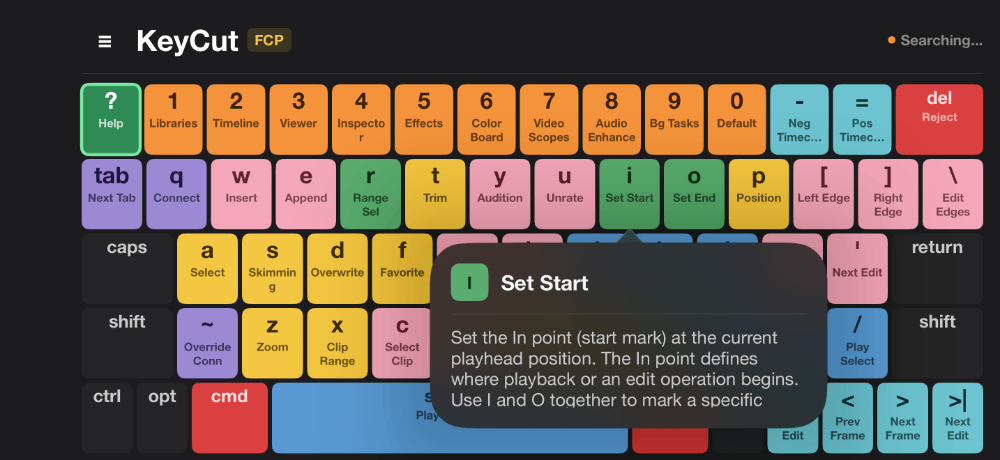
The iPhone layout is built for a phone rather than squeezed down from the iPad — fewer keys per row, the same seven colours, and a tap on any key gives you the full description of what it does.
Mac Helper App
Tap your iPad.
Your editor responds.
The free Mac Helper runs in your menu bar and turns taps on your iPad into real keystrokes on your Mac. It watches which application is frontmost, so moving from Premiere to Resolve mid-session switches the iPad to the right keyboard on its own. Everything happens over your local Wi-Fi — no internet, no account, no record of what you are cutting.
Download & install
Download the Mac Helper App and drag it to your Applications folder. It'll appear in your menu bar.
Connect over local network
Make sure your Mac and iPhone/iPad are on the same Wi-Fi. KeyCut finds the Helper automatically.
Tap to send shortcuts
Every key tap in KeyCut fires the corresponding shortcut into the editor you are working in, instantly.
Last command received:
Recent shortcuts
FAQ
Frequently asked questions.
Which video editors does KeyCut work with? +
Final Cut Pro, Premiere Pro and DaVinci Resolve, each with its own layout and live control. Browse the full shortcut lists for Final Cut Pro, Premiere Pro and DaVinci Resolve. You do not choose one at install — the Mac Helper detects which editor is frontmost and the iPad follows.
Do I have to switch editors manually in the app? +
No, and this is the part a Stream Deck cannot do without configuration. The Mac Helper watches which application is frontmost on your Mac and tells the iPad to load that editor's keyboard. Cut in Premiere, grade in Resolve, and the iPad changes underneath you. You can pin it to one editor if you would rather.
How many shortcuts does KeyCut include? +
Over 180 across the three editors, each grouped into colour-coded categories and each with a full description you get by tapping the key. The layouts cover the commands your editor puts on a single keypress — the ones worth building muscle memory for, because you will press them thousands of times.
Does KeyCut work without an internet connection? +
Yes. The shortcut reference works entirely offline. With the Mac Helper, the iPad finds your Mac using Bonjour on your local network and sends to it directly — nothing reaches a server, there is no account, and it works on a network with no internet connection at all.
Is KeyCut free to download? +
KeyCut is free to download from the App Store for iPad and iPhone. The full shortcut reference and colour-coded keyboard layouts for all three editors are free. A one-time lifetime purchase or monthly subscription unlocks live control through the Mac Helper App.
Ready to edit faster?
Download KeyCut.
It's free.
Available now on the App Store for iPad and iPhone.